TL;DR
Generate a key (Bing’s key generator, or
openssl rand -hex 16)Upload it as a
.txtfile in Framer under Domains → [your domain] → Files (buried, and only on Pro/Scale/Enterprise plans)Publish, then confirm the file loads at
yourdomain.com/yourkey.txtVerify from terminal with
curlSubmit your sitemap to IndexNow via a
curl+jqone-liner (check first whether it’s aurlsetorsitemapindex)Confirm submission worked by resubmitting one URL or checking Bing Webmaster Tools
If you run a Framer site, there is a good chance Bing has barely indexed it, and that matters more than most people realize.
ChatGPT does not crawl the web on its own for most of what it tells you. It leans on Bing’s index. If Bing has not seen your pages, ChatGPT usually has not either, no matter how well you rank on Google.
Here is what the data says about that gap:
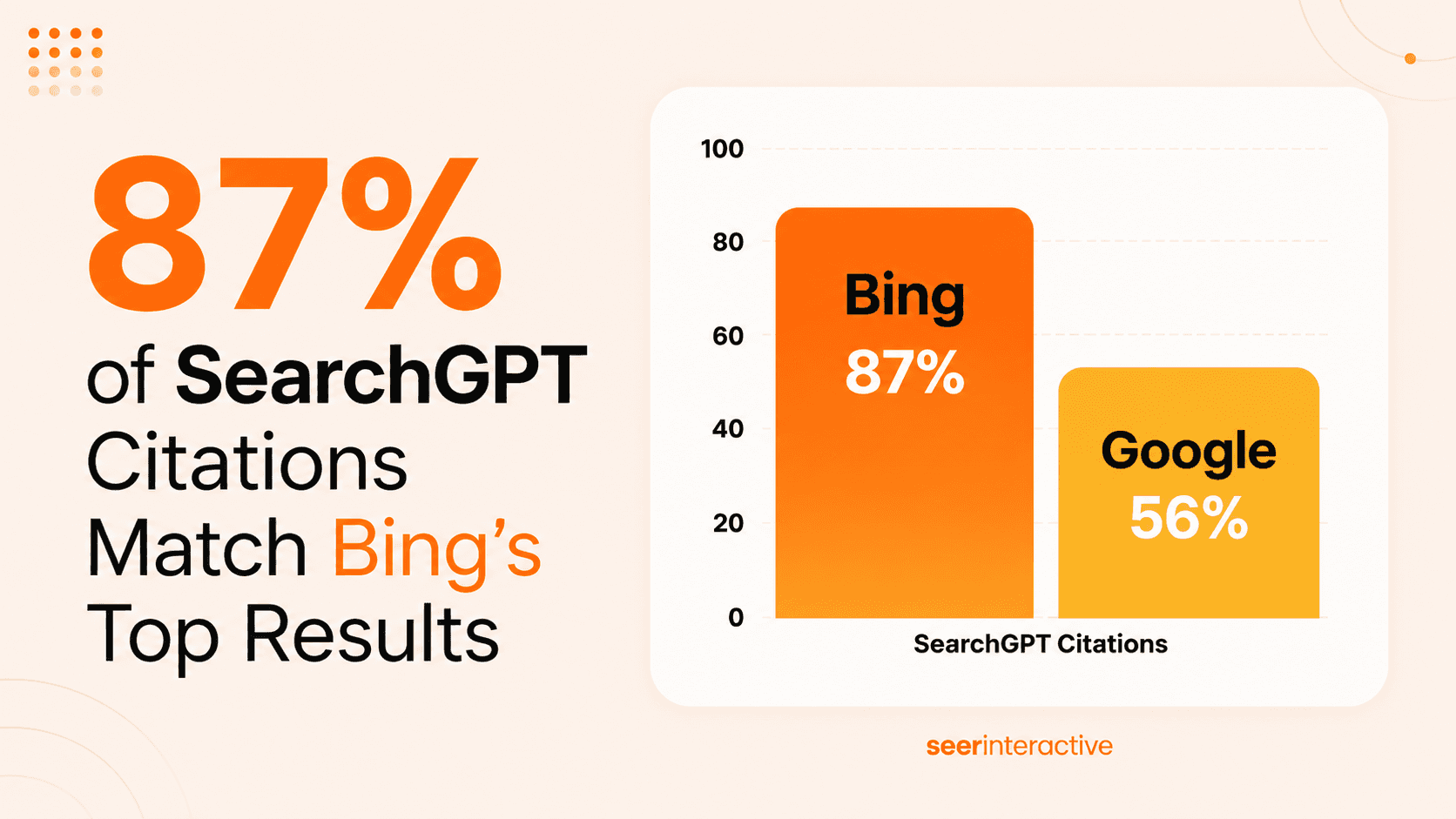
One analysis by Seer Interactive found that ChatGPT citations matched Bing’s top results 87% of the time, compared to only 56% for Google.
An AirOps study covering 548,534 pages across 15,000 prompts (March 2026) found ChatGPT only cites 15% of the pages it actually retrieves.
EMGI Group reported in April 2026 that 44% of SaaS brands with strong Google rankings have zero ChatGPT visibility.
ChatGPT was processing over 1 billion queries a week as of early 2026, according to industry estimates.
None of that matters if your pages are not in Bing’s index in the first place.
This guide is exactly how I set up IndexNow on a Framer site this week, including the part where Framer’s own settings nearly made me give up.
Why Bing Decides Whether ChatGPT Cites You
Google still handles roughly 90% of global search volume, so it is easy to assume Google is the only index that matters. AI answer engines flip that assumption. ChatGPT Search draws its real time web results from Bing’s index, not Google’s.
Microsoft Copilot, which is now used across Windows, Edge, and Office at over 60% of Fortune 500 companies, runs on the same index. Perplexity leans on it too.
That means being indexed in Bing is not a nice to have anymore. It is the prerequisite for showing up as a citation in ChatGPT at all.
Ranking position in Bing matters less than simply being in the index, since one study found ChatGPT’s actual citation only lined up with a page’s Bing rank about 7% of the time. Getting indexed is step one.
What happens after that is a separate conversation about content structure, which I go into in more detail in <a href="https://keytomic.com/blog/ai-search-ranking-complete-guide">my guide to ranking in AI search</a>.
IndexNow is the fastest way to close that Bing indexing gap, so that is what this guide covers.
What Is IndexNow, Exactly?
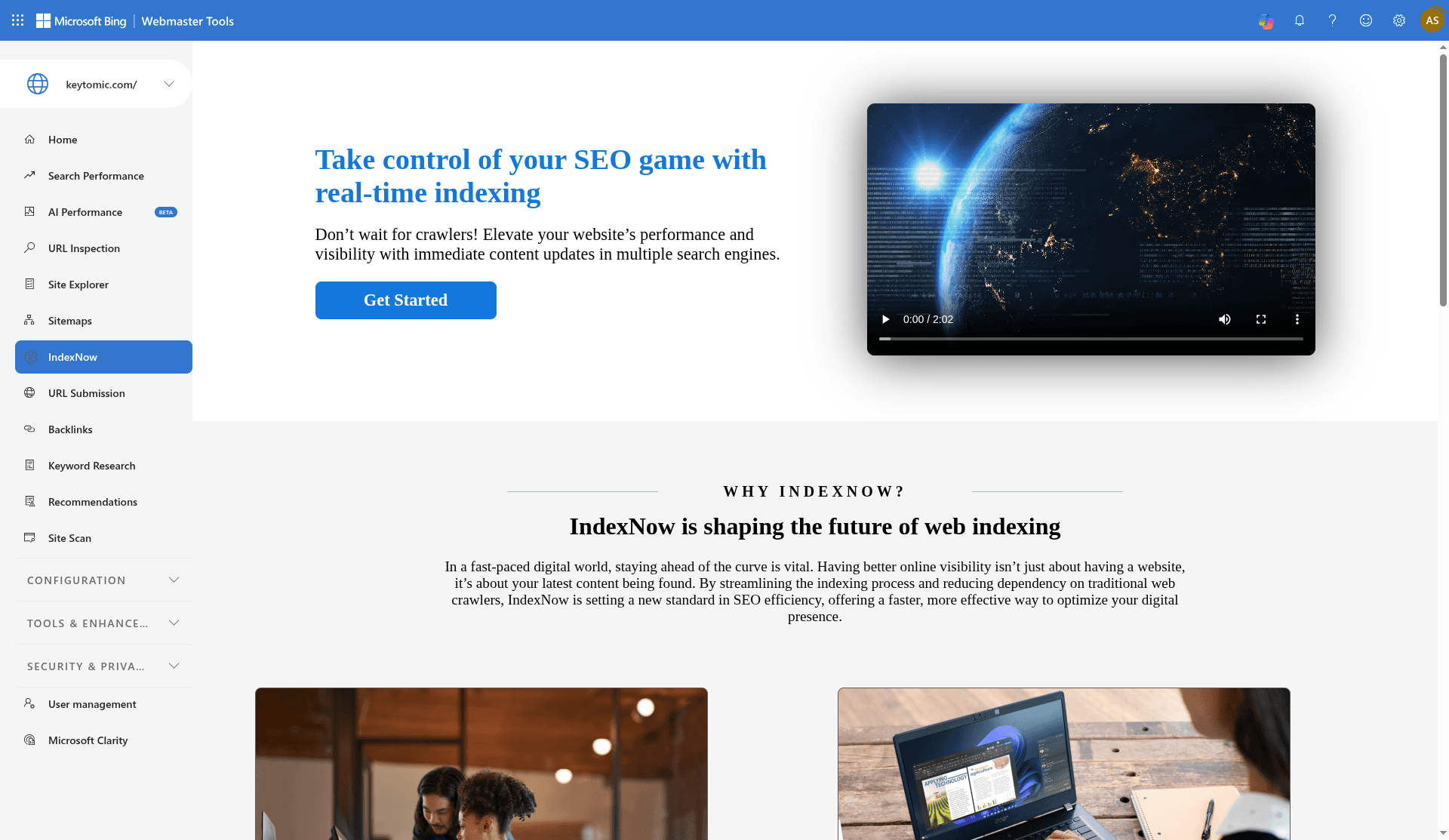
IndexNow is a free, open protocol built by Microsoft Bing and Yandex. Instead of waiting days or weeks for a crawler to notice your new or updated page, you send one HTTP ping and every participating search engine gets notified at once.
Bing, Yandex, Naver, Seznam, and Yep (the engine behind DuckDuckGo’s index) all support it. Over 80 million websites were using it as of January 2026.
One important exception: Google does not support IndexNow. Google has tested it since 2021 and never joined. For Google, you still need a normal sitemap and Search Console.
IndexNow will not touch your Google rankings directly, but it is currently the fastest path into Bing, and Bing is what feeds ChatGPT.
Step 1: Generate Your IndexNow Key
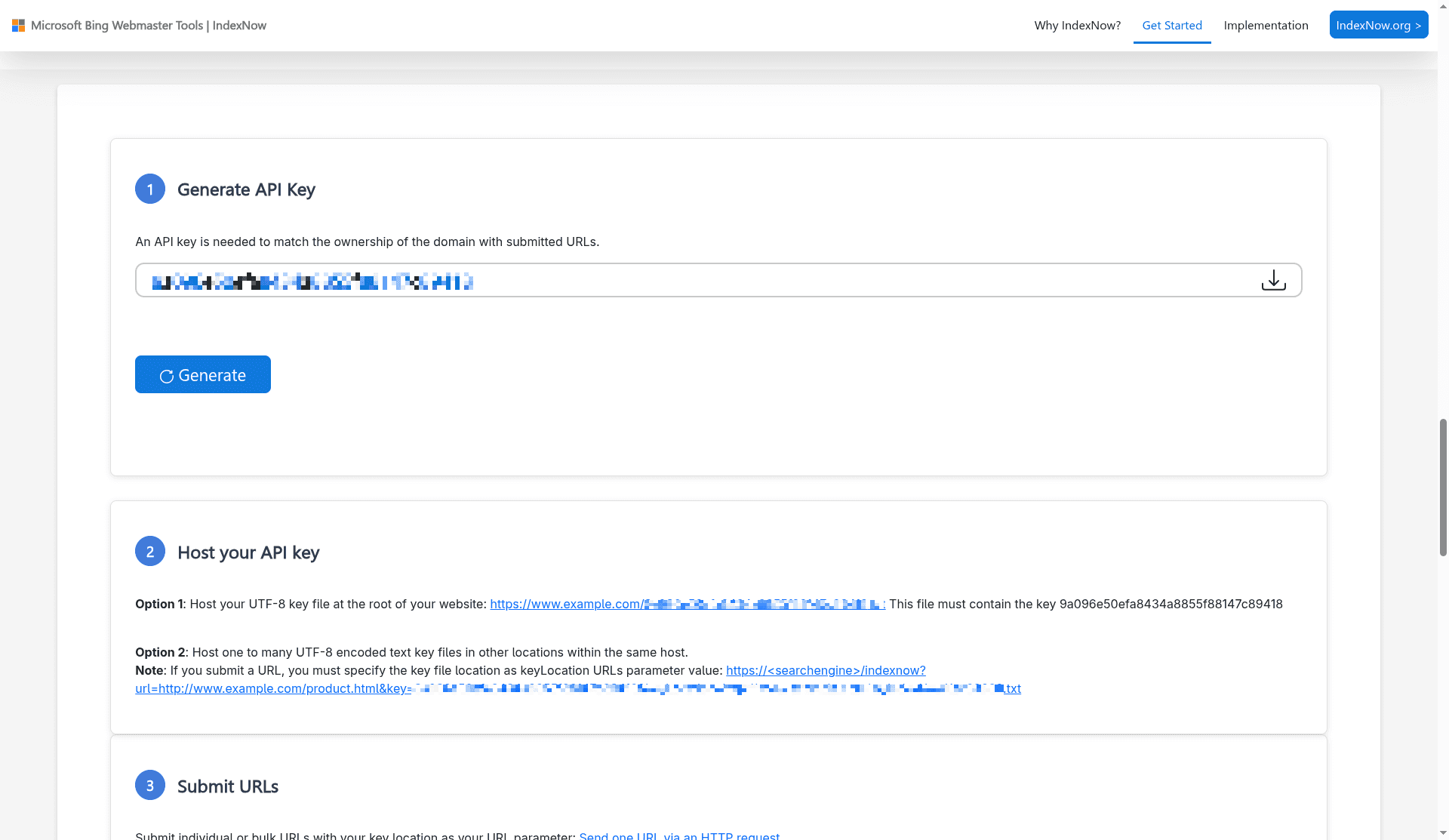
Your key is just a random string, 8 to 128 characters, letters and numbers only. You have two easy ways to get one.
Option A, use Bing’s generator: Go to https://www.bing.com/indexnow/getstarted, scroll to the key section, and click Generate Key. Download the file it gives you.
Option B, generate it yourself in the terminal:
That gives you a 32 character key, something like a1b2c3d4e5f6a1b2c3d4e5f6a1b2c3d4. Either method works. Save the key somewhere, you will need it again in Step 6.
Step 2: Find Framer’s Static Files Section (It’s Not Where You’d Guess)
This is the part I want to save you the trouble on.
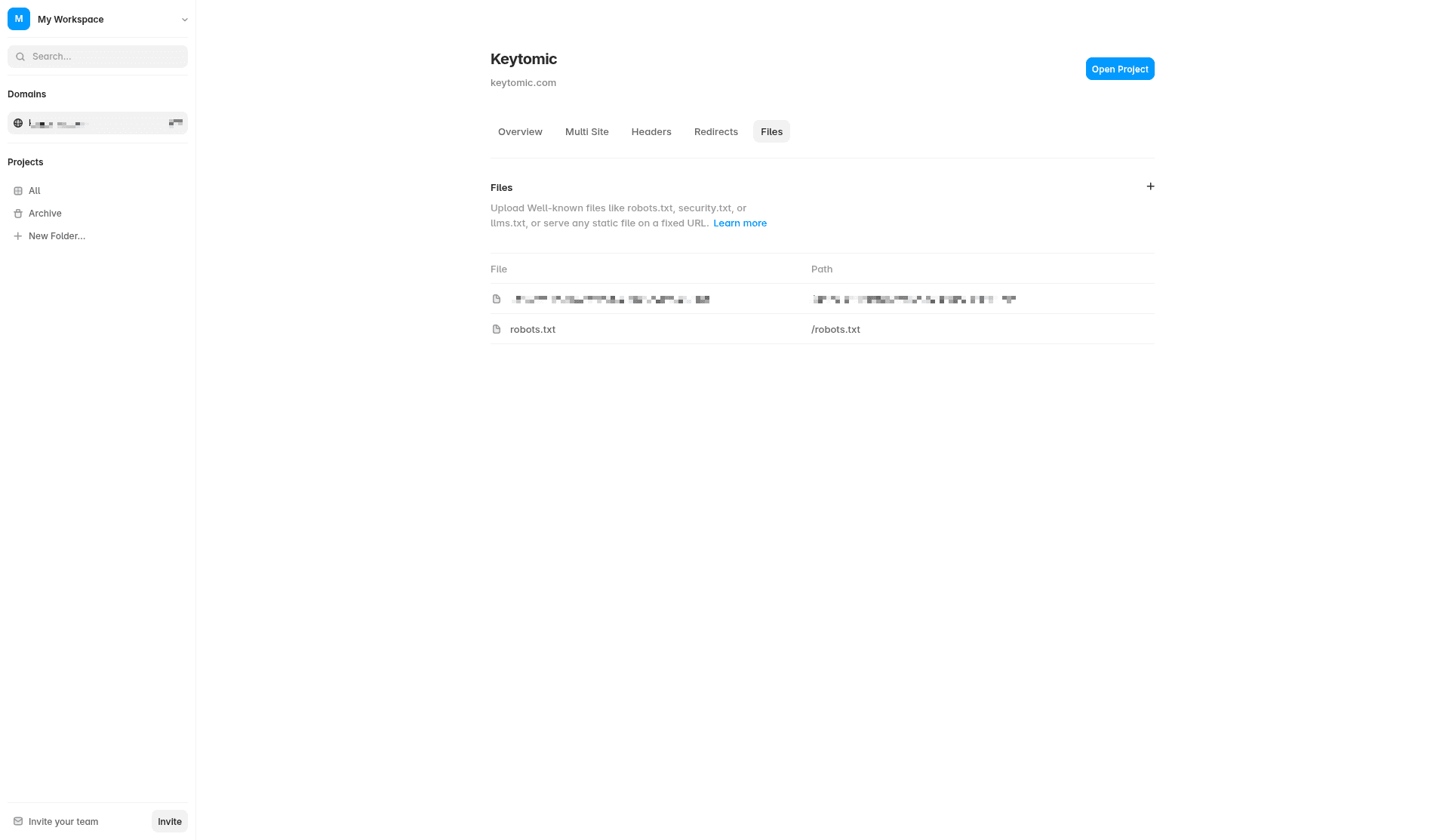
In Framer, go to your project dashboard, click Domains, then click on the specific domain you want to publish to. Inside that domain’s settings, look for the Files tab.
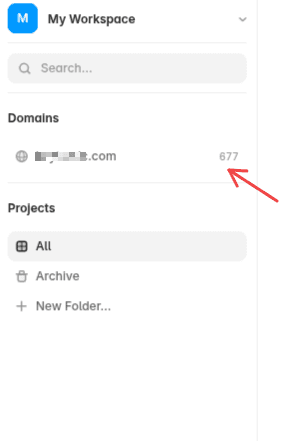
This is where Framer’s “Static Files” feature lives, sitting quietly under Advanced Hosting settings instead of anywhere near “SEO” or “Verification,” which is where most people naturally go looking first.
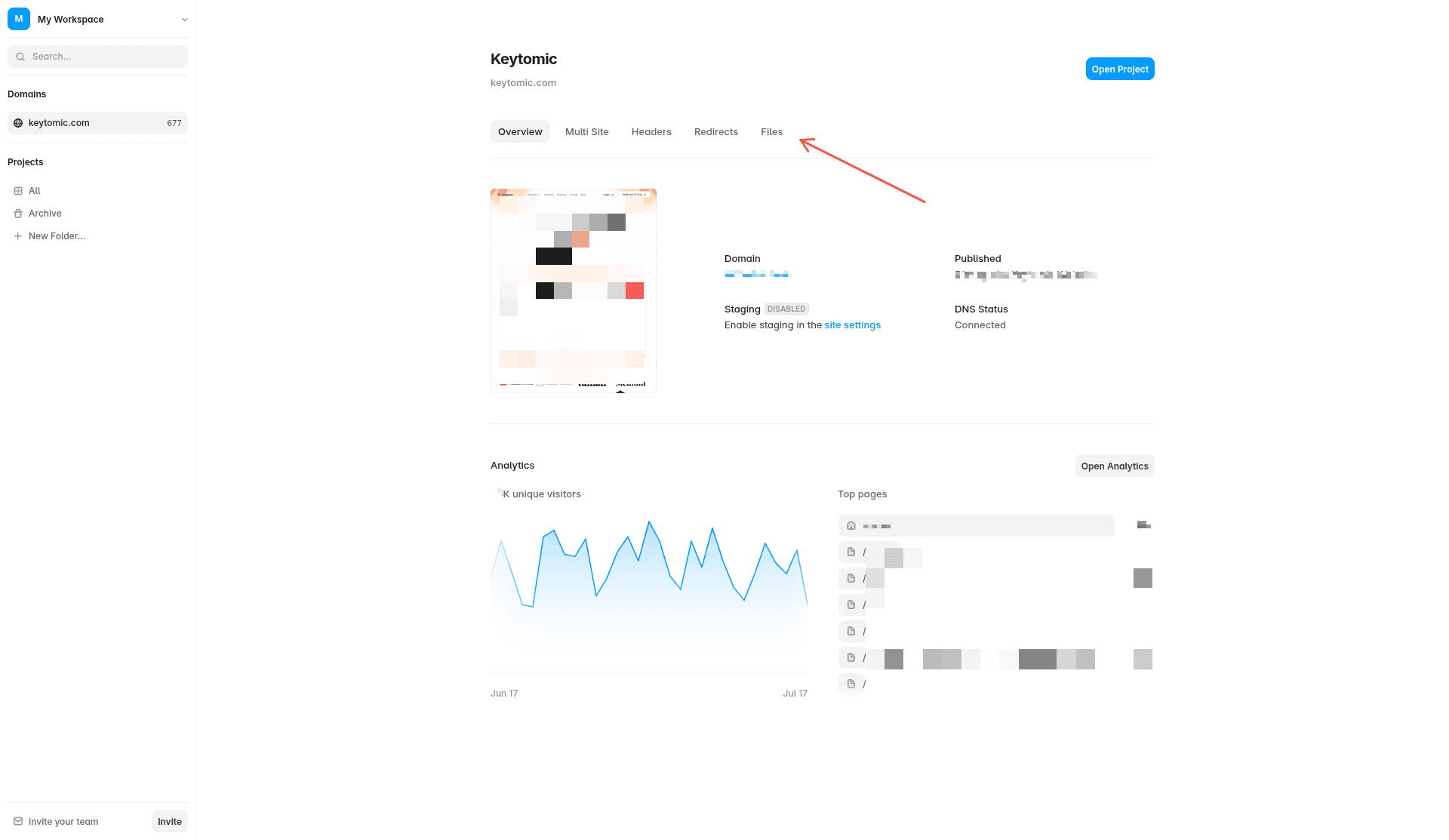
Gotcha!
Two things worth knowing before you get here:
Static Files is a Framer feature that only shipped in March 2026. If you read an older guide claiming Framer cannot host custom text files at all, that guide predates the feature.
It is only available on Framer’s Pro, Scale, and Enterprise plans. If you are on a free or Mini plan, you will not see this tab at all.
I get why Framer wants this gated behind paid plans. But burying a one file upload feature two menus deep, with zero mention of it on the Domains overview screen, is exactly the kind of friction that makes people give up on basic technical SEO before they even get started. A short callout on the Domains page pointing to Files would save a lot of confused support threads.
Step 3: Upload Your Key as a .txt File
Once you’re in the Files tab:
Create a plain text file. Name it exactly like your key, for example
a1b2c3d4e5f6a1b2c3d4e5f6a1b2c3d4.txt.
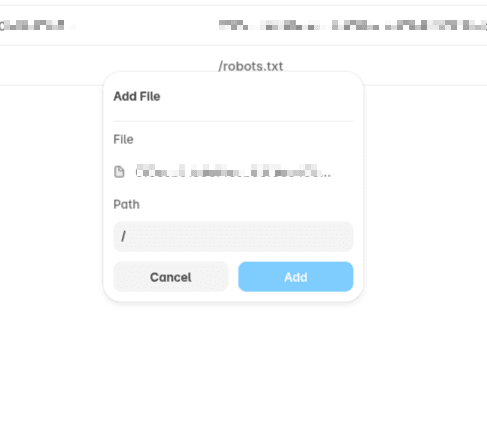
Put only the key itself inside the file, nothing else, no extra line breaks.
Upload it and set the path to
/(the root), not a subfolder like/verification.
The path matters more than people expect. If you leave it blank or pick a folder, your file will end up at a URL like yourdomain.com/verification/yourkey.txt instead of yourdomain.com/yourkey.txt, and IndexNow will not find it at the root where it expects it.
Step 4: Publish, Then Test the File Live
Uploading the file inside the Files tab does not put it live on its own. Go back to your main project, click the blue Publish button in the top right, and give it thirty to sixty seconds.
Then open a browser and go straight to:
You should see the key by itself on a plain white page, nothing else. If you get a 404, do a hard refresh (Ctrl+Shift+R or Cmd+Shift+R) or try an incognito window before assuming something is broken. Framer’s cache can lag behind a fresh publish by a minute or two.
Step 5: Verify From the Terminal
Browser checks are fine, but a terminal check is more reliable and easier to repeat. Start with a plain request:
You want to see HTTP/2 200 and a body that contains only your key, nothing extra. If you see HTML, a redirect, or a login page instead, the file is not being served correctly yet.
To check the match automatically instead of eyeballing it, use this script:
Swap in your real domain and key, run it, and you will get a clear pass or fail instead of guessing. If you would rather run a broader technical check on your live robots.txt before this step, Keytomic’s free robots.txt validator is a quick way to confirm AI crawlers like GPTBot and OAI-SearchBot are not being blocked.
Step 6: Submit Your Sitemap to IndexNow
With the key file live, you can now tell IndexNow about every URL on your site in one request. First, check what kind of sitemap you actually have:
Look for one of two tags near the top:
<urlset>means it is a single flat sitemap with your actual page URLs. You can submit it directly.<sitemapindex>means it is an index pointing to several smaller sitemaps, which is common on larger sites. Submitting this file alone only tells IndexNow about the child sitemap URLs, not your actual pages.
If you have a plain <urlset> sitemap, run this:
If you have a <sitemapindex>, pull every child sitemap first, then submit the combined list:
A response of HTTP/2 200 means the batch was accepted. If you are not confident about your sitemap structure or want to pull the full URL list without writing the script yourself, Keytomic’s sitemap URL extractor will list every URL from a sitemap or sitemap index in one pass.
Step 7: Confirm Your Submission Actually Went Through
IndexNow does not give you a lookup tool to ask “was this exact URL submitted.” A 200 response is the confirmation, and there is no separate status endpoint to check later. Two practical ways to double check:
Resubmit one URL from your sitemap:
Another HTTP/2 200 confirms your setup is working end to end.
Check Bing Webmaster Tools: open the URL Inspection tool inside Bing Webmaster Tools and paste in one of the URLs you submitted. Once Bing crawls it, you will see whether it has been discovered and indexed. This will not literally say “received via IndexNow,” but it confirms Bing has processed the page.
Quick FAQ
Does Google support IndexNow? No. Google has tested the protocol since 2021 but has never adopted it. For Google, you still need an XML sitemap and Google Search Console.
Do I need a paid Framer plan to upload a key file? Yes. Static Files, the feature that lets you host a .txt file at your root domain, is only available on Framer’s Pro, Scale, and Enterprise plans.
I uploaded the file but the URL still 404s. What’s wrong? The three most common causes: you forgot to click Publish after uploading, the file was uploaded into a subfolder instead of the root path, or the filename does not exactly match your key (it’s case sensitive and needs the .txt extension).
Does IndexNow guarantee my pages get indexed? No. It is a crawl hint, not a command. Search engines still apply their own quality checks. A successful submission means your URL entered the queue, not that it is guaranteed to appear in results.
Do I need to resubmit every time I publish a new page? Yes, for pages that are new or meaningfully updated. IndexNow works best when you submit real changes, not your entire site on a schedule.
How to Make the Rest of Your Framer Site Easier to Find (in Google and in AI Answers)
Getting your Framer site indexed is only the first step.
The bigger challenge is consistently publishing content that ranks, gets indexed quickly, earns backlinks, and is actually cited by AI search engines like ChatGPT, Gemini, and Perplexity. That’s the part that usually takes the most time.
That’s exactly why we built Keytomic.
Instead of juggling keyword research, content writing, publishing, indexing, technical SEO, and AI visibility across multiple tools, Keytomic automates the entire SEO workflow in one place—you simply review and approve.
What Keytomic does

Keyword research & topical mapping to uncover high-intent opportunities and build complete topical authority.
AI-generated content briefs and SEO-optimized articles structured around search intent and E-E-A-T best practices.
One-click publishing to Framer, WordPress, Shopify, Webflow, and other CMS platforms.
Automatic indexing so every new or updated page is submitted the moment it’s published.
Automated technical SEO audits that catch crawl issues, broken links, missing schema, slow pages, and other ranking problems.
Automatic schema markup, including Article and FAQ schema, to help search engines and AI models better understand your content.
Google Search Console integration with indexing and performance reporting.
AI visibility tracking to monitor how often your brand appears in ChatGPT, Gemini, and Perplexity.
Backlink audits and a Reddit AI agent to help strengthen the authority signals AI systems increasingly rely on.
Built specifically for Framer
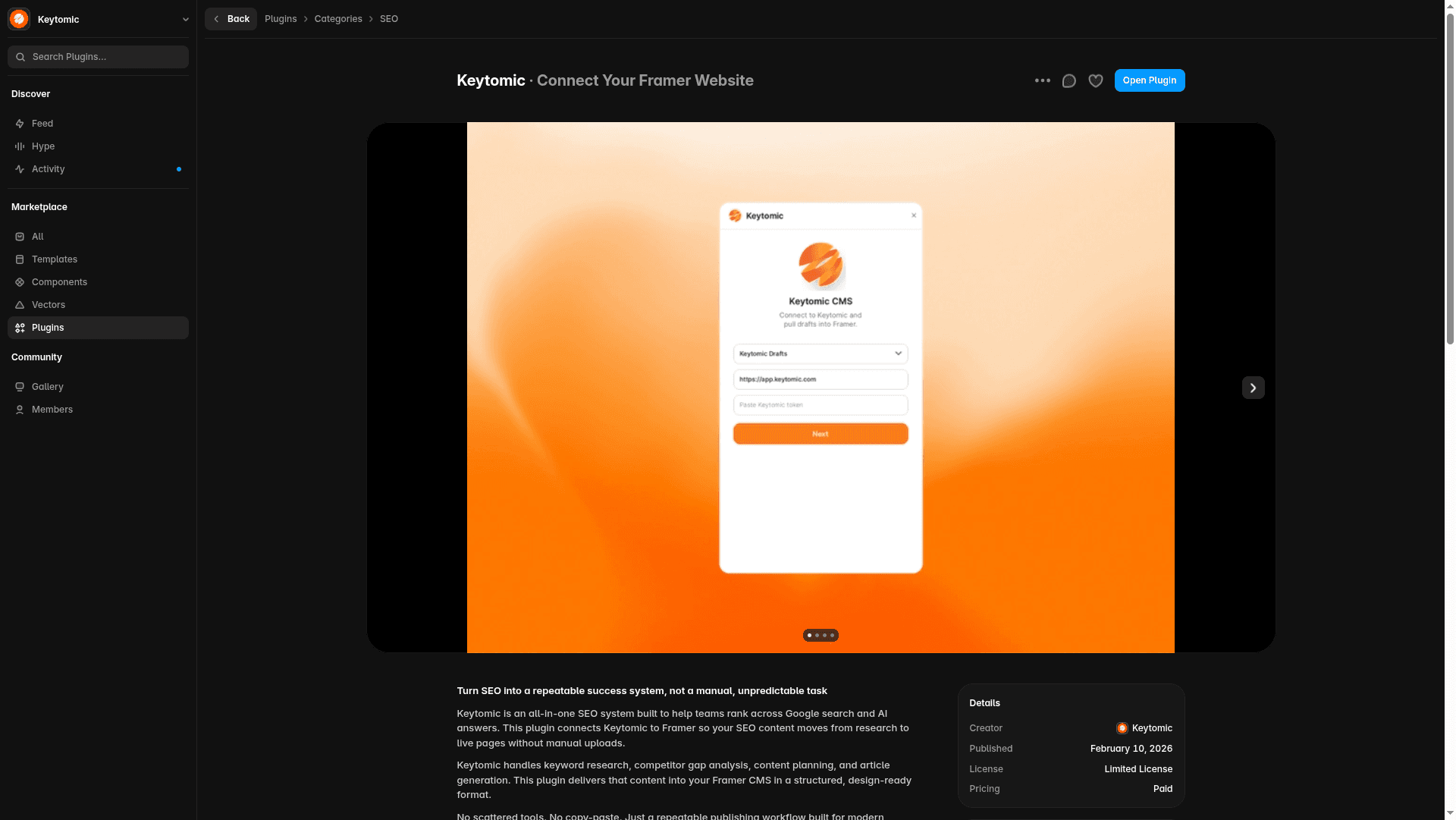
The Keytomic Framer Plugin connects directly to your Framer project. It generates a 30-day content calendar from real keyword gaps, publishes articles straight into your Framer CMS with one click, and automatically indexes every new page—no manual copy-pasting or terminal commands required.
Want to see how it works? Read How Keytomic Automates Publishing & Indexing.
Try it on your own Framer site
Keytomic costs $99/month and includes a $1 three-day trial, so you can test everything on your own site before committing.
Or, if you’d prefer a walkthrough first:
If you’ve made it this far, you’re clearly serious about growing your Framer site. Getting indexed with IndexNow is a great start—but if you want consistent organic traffic and AI citations without spending hours every week on SEO, Keytomic was built for exactly that.